GEE Algo logo GEE Algo

Full setup guide

GEE Algo connects TradingView alerts to your MT5 EA using your API key + credits. You can run MT5 on your own PC (no VPS required). A VPS is optional for 24/7 uptime.
1) Account + API key 2) TradingView webhook 3) MT5 + EA Optional: VPS Troubleshooting
How it works (overview)
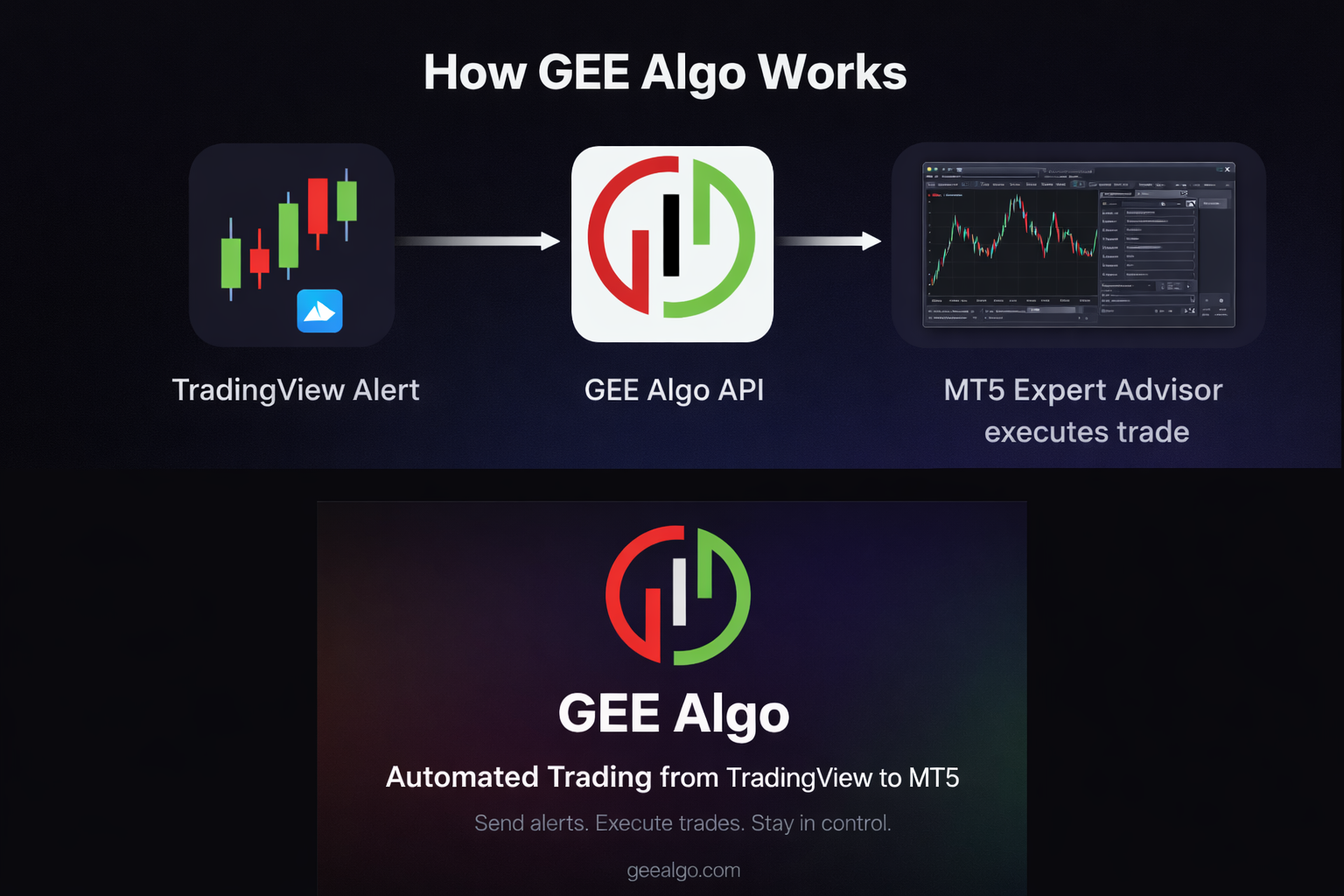
TradingView alert → GEE Algo API → MT5 EA executes.
How it works diagram: TradingView alert -> api.geealgo.com/signal -> MT5 EA executes
1) Create your account + get your API key
Go to /signup, register, confirm email, and sign in. Then open /dashboard to view credits and rotate your API key.
API key rotation note: If you rotate your key later, you must update the API key in both TradingView alerts and MT5 EA inputs (InpApiKey). Rotating disables the old key.
What you’ll see in Dashboard
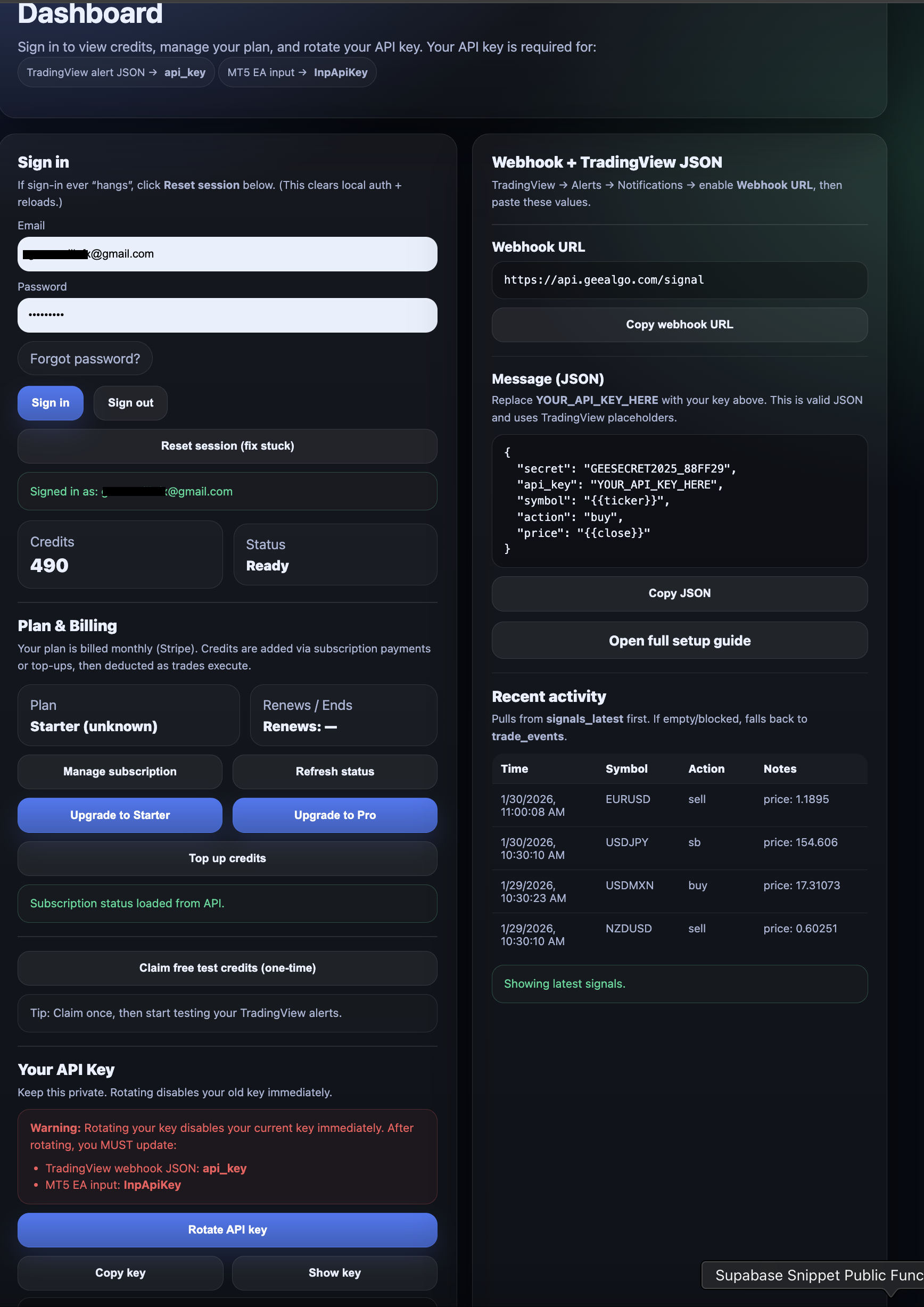
Your webhook URL, your API key, and your credits wallet.
Dashboard screenshot showing webhook URL, message JSON, and API key
2) Add your TradingView webhook (works with any strategy)
In TradingView → Alerts → Notifications, enable Webhook URL and paste the URL below. Then paste the JSON message template. This works with GEE Algo signals or any TradingView strategy, as long as the alert sends an action of buy or sell.
TradingView setup (copy/paste)
Webhook URL
https://api.geealgo.com/signal
Message (JSON)
{
  "secret": "GEESECRET2025_88FF29",
  "api_key": "YOUR_API_KEY_HERE",
  "symbol": "{{ticker}}",
  "action": "buy",
  "price": "{{close}}"
}
Notes:
  • Replace YOUR_API_KEY_HERE with your key from /dashboard.
  • Use "action": "buy" for buy alerts and "action": "sell" for sell alerts.
  • Keep the message valid JSON (quotes + commas).
  • If your broker uses different symbol names (example: NZDUSD vs NZDUSDm), you may need symbol mapping inside the EA.
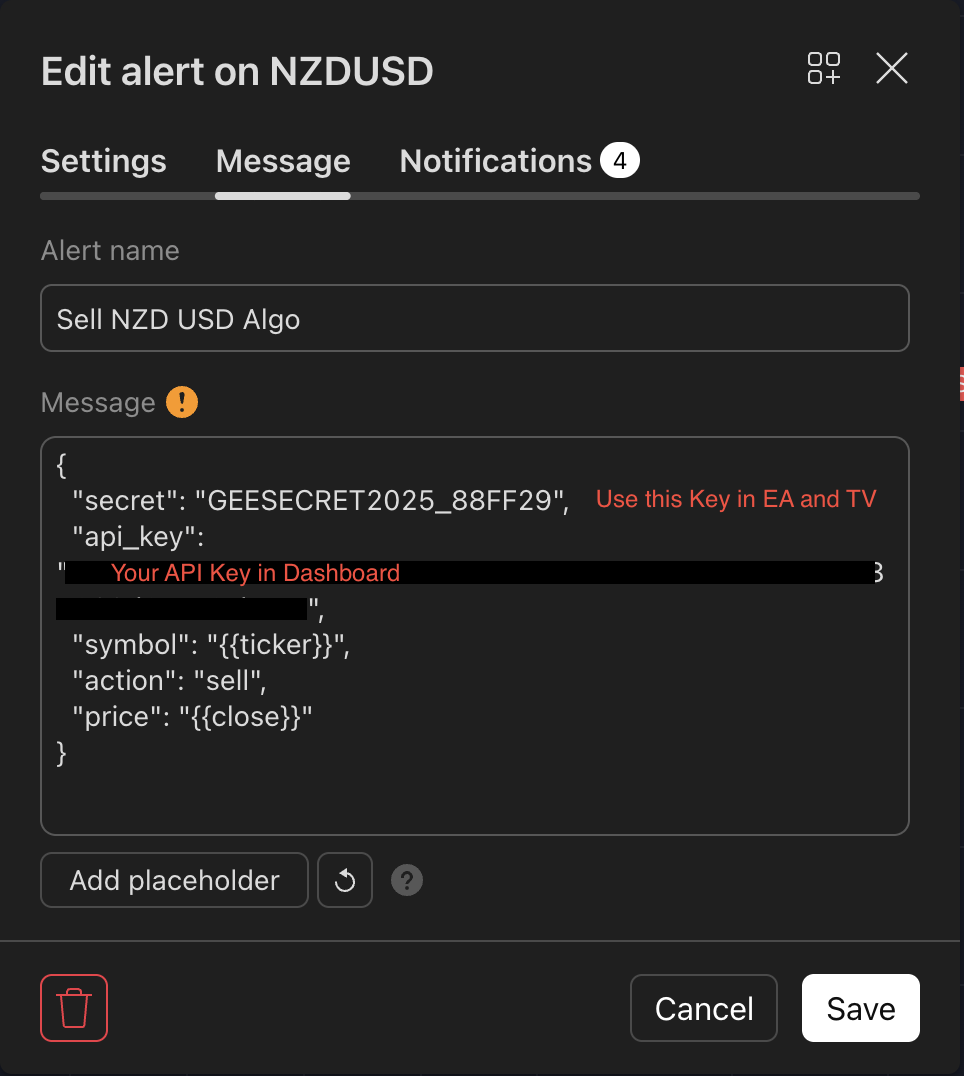
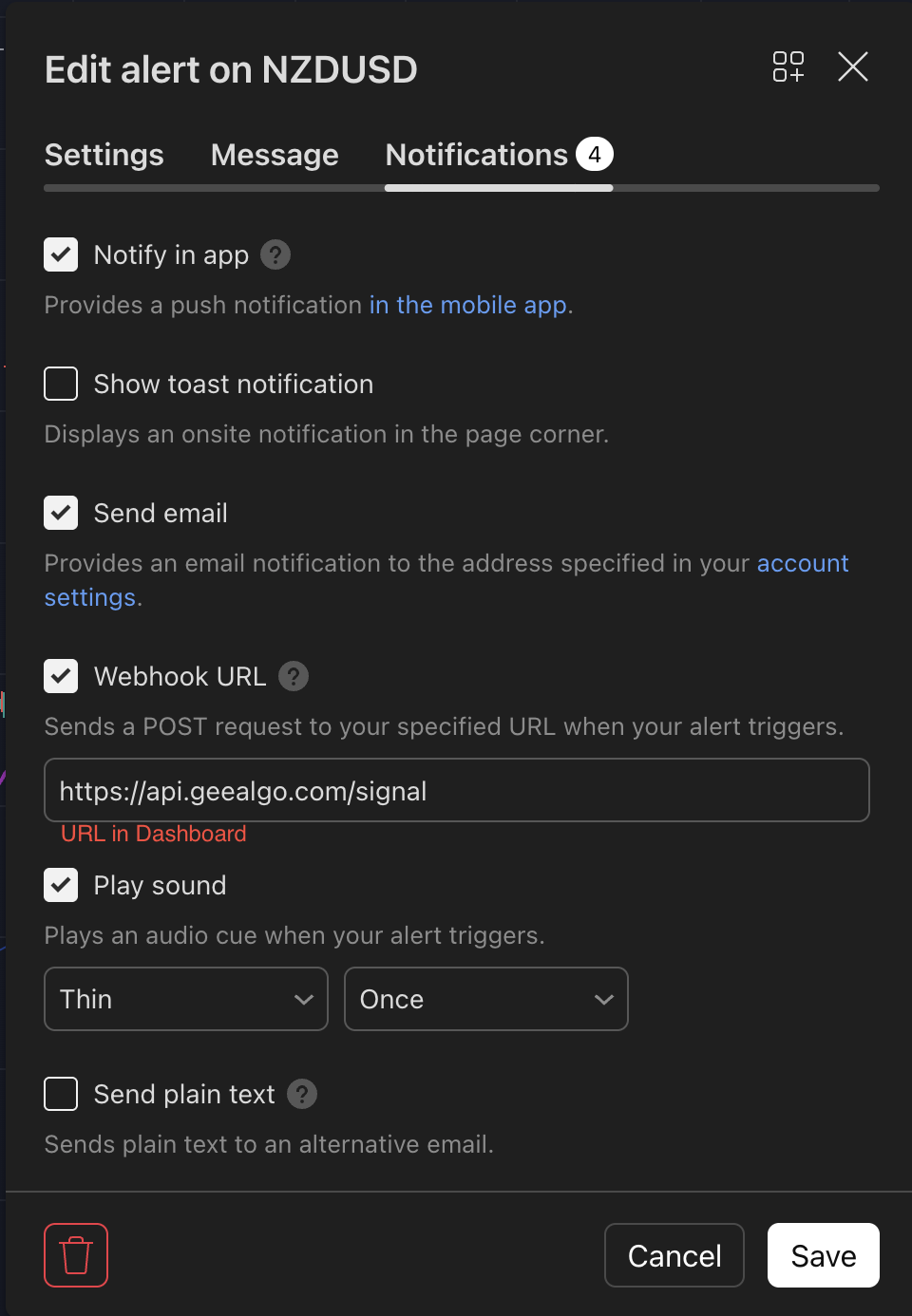
TradingView screenshot
Your alert should include the webhook URL and the JSON message.
TradingView alert setup screenshot (webhook URL + message JSON)
TradingView alert message JSON screenshot
If your files are currently named tv-alert-setup2 / tv-alert-setup3 with no extension, rename them to .png.
3) Run MT5 + the EA (PC or VPS)
Install MT5, add the EA, paste your API key, and keep MT5 running while you trade. If you want 24/7 execution even when your laptop is closed, run MT5 on a VPS.
Option A — Personal computer (recommended for most users)
  • Install MetaTrader 5 (MT5) from your broker.
  • Log in to your broker account in MT5.
  • Enable Algo Trading / AutoTrading in MT5.
  • Attach the EA to the chart of the symbol you want to trade.
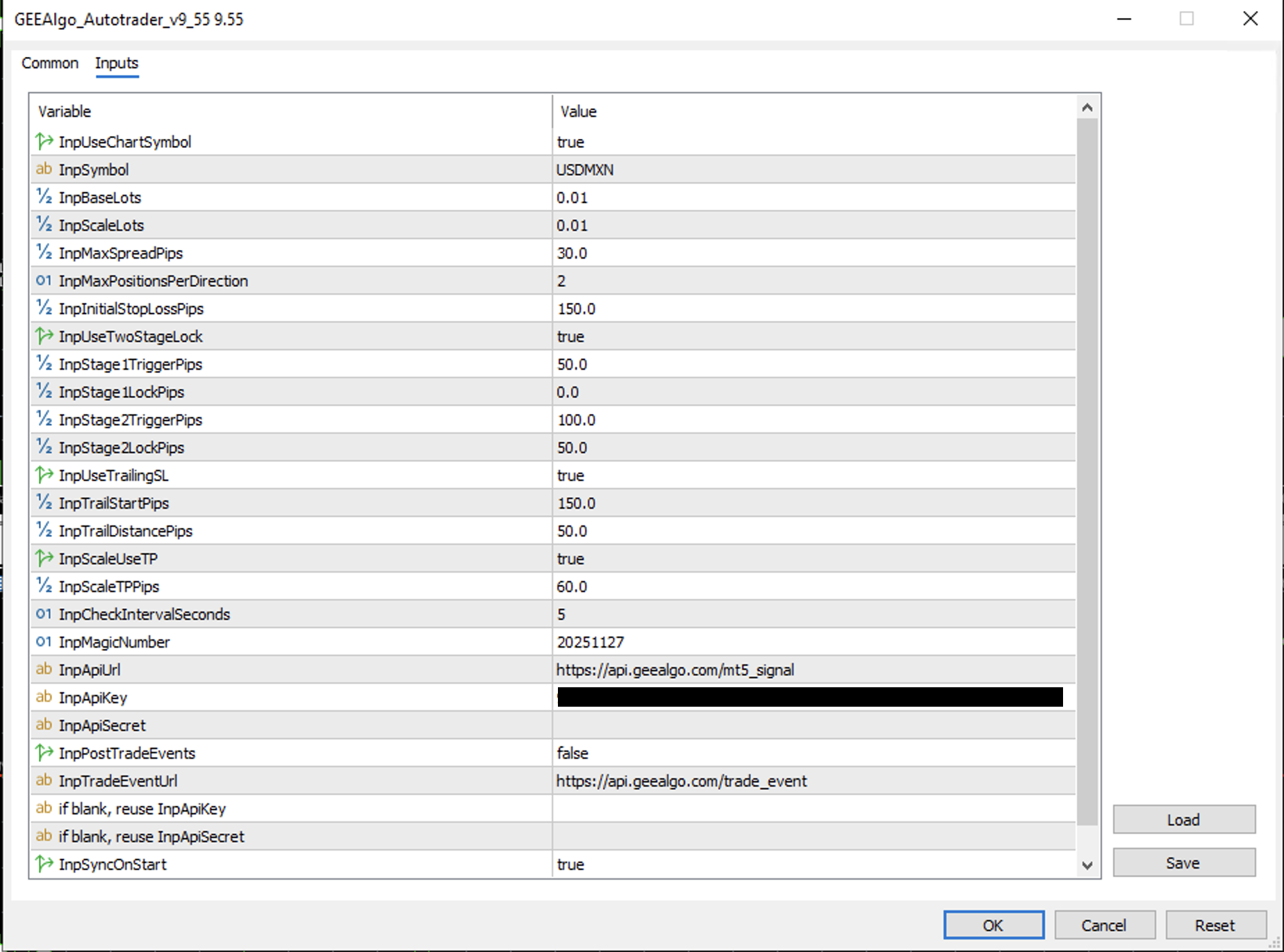
  • In EA inputs, paste your InpApiKey (from the dashboard).
  • Keep MT5 running while you want automation on.
EA download: You’ll download the EA inside the Dashboard during setup (so users always get the latest version). If you want, we can add a “Download EA” button in Dashboard that saves the file and shows the install steps.
EA settings (InpApiKey)
Paste your API key into the EA inputs. If you rotate the key, update it here too.
MT5 EA inputs screenshot showing InpApiKey and other settings
Optional: VPS (24/7 execution)
A VPS is only needed if you want MT5 to run while your personal computer is off. If you already use EAs, you’ll feel right at home.
VPS setup checklist
  • Buy a Windows VPS (any provider is fine).
  • Remote Desktop into the VPS.
  • Install MT5 + log in to your broker.
  • Attach the EA and paste your InpApiKey.
  • Ensure MT5 auto-starts after reboots (Startup folder / Task Scheduler).
After a reboot: MT5 may restart with an old EA profile. If you rotated your API key, make sure the EA input InpApiKey matches the current key in Dashboard.
Troubleshooting
Quick fixes for the most common issues.
“Invalid or inactive api_key” (HTTP 403) in MT5
  • You rotated your API key in Dashboard, but MT5 EA still has the old key.
  • Fix: update InpApiKey in EA inputs to your current key.
Pricing page says “No API key found”
  • Sign in on /dashboard first.
  • The site stores your API key in your browser as gee_api_key.
TradingView alerts not triggering trades
  • Double-check the webhook URL and valid JSON message.
  • Confirm the alert is firing (TradingView “Log” tab).
  • Confirm MT5 is running and AutoTrading/AlgoTrading is enabled.
Symbol mismatch
  • Your broker may use suffixes (example: EURUSDm).
  • Fix: adjust the TradingView symbol or implement mapping in EA.